The client sent eleven notes on version 2. You fixed them, exported version 3, and sent it back. Two days later: "the logo is still too small at the end". Was it? You are sure you changed it. Or was that the other logo? Now you are scrubbing through two files in two windows trying to remember.
Checking revisions is one of the least talked about parts of video work, and one of the most expensive. This article shows a simple way to compare video versions side by side and prove that every note was done.
Why revision checks go wrong
- Notes live in one place, versions in another. The comments are in a chat, the files are in a drive, and nothing links a note to the version it was written on.
- Your memory is the checklist. After a long day of edits, "I think I did that" is not good enough.
- Small changes are invisible at normal speed. A colour shift, a timing change of six frames, a new word in a title. You only see them when both versions play at once.
Keep every version in one stack
The first rule: never upload version 3 as a new, separate file. Upload it on top of version 2. In Next Horizon Review this builds a version stack: V1, V2, V3 on one asset, with a switcher at the top of the player. Each version keeps its own comments, so the notes written on V2 stay attached to V2.
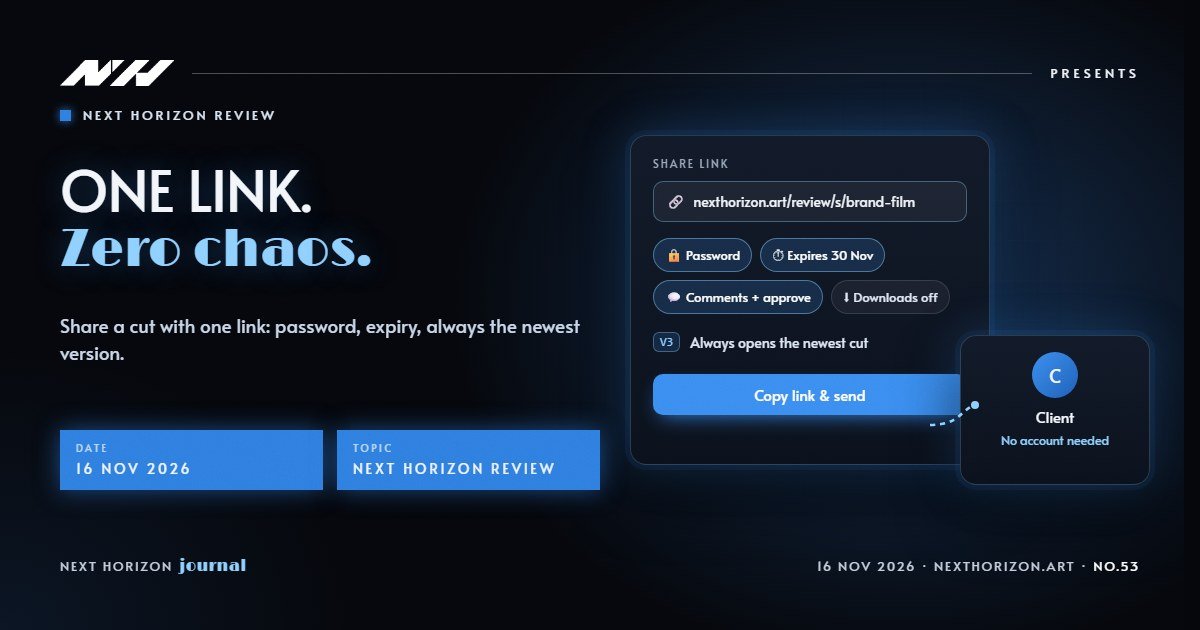
Your share link always opens the newest version, so the client never has to ask which file is current.
Compare two versions, in sync
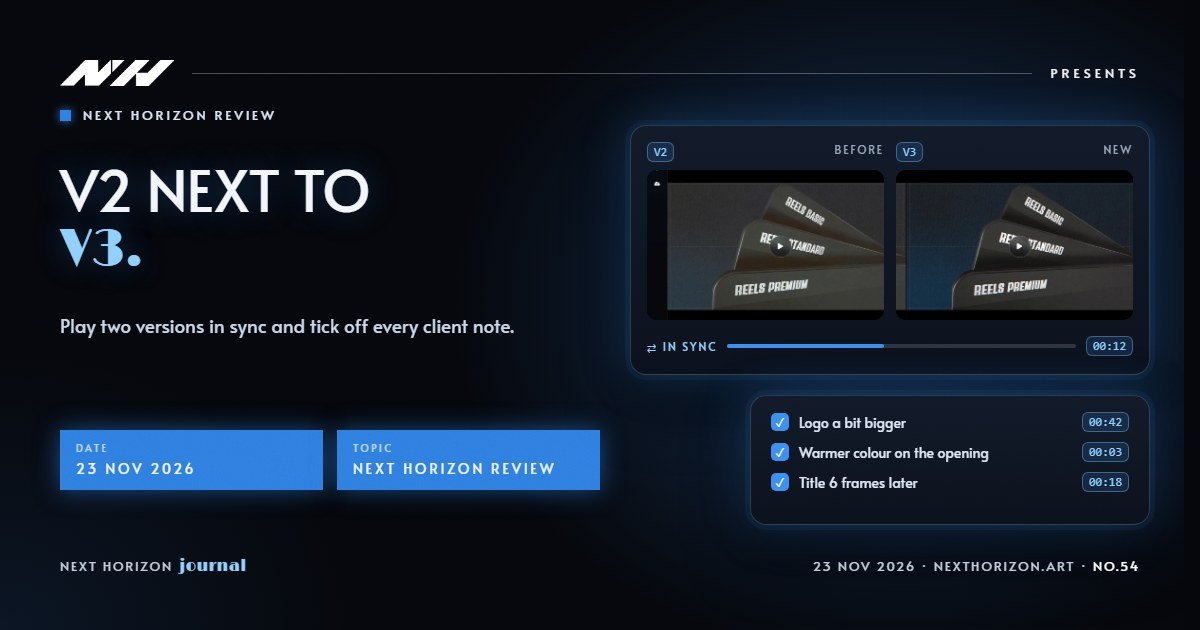
Pick two versions and open them in compare view. They sit side by side and play together: press play, pause, seek or change speed on one, and the other follows. A six frame timing change that you would never catch watching each file separately becomes obvious.
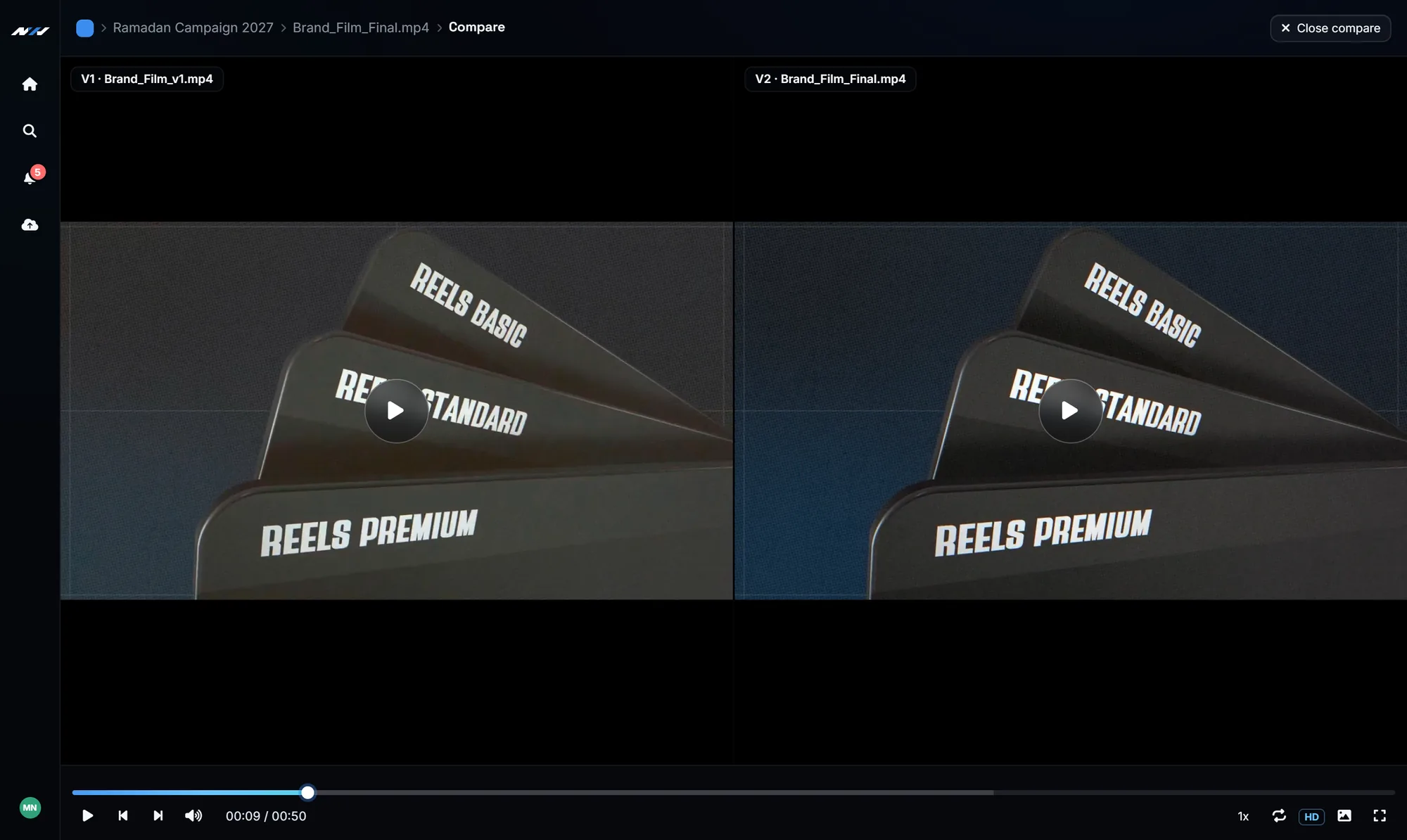
This is useful for you before you send a new version, and just as useful for the client. A client who can see V2 and V3 next to each other approves faster, because they can see that their notes were taken seriously.
Use the notes as a checklist
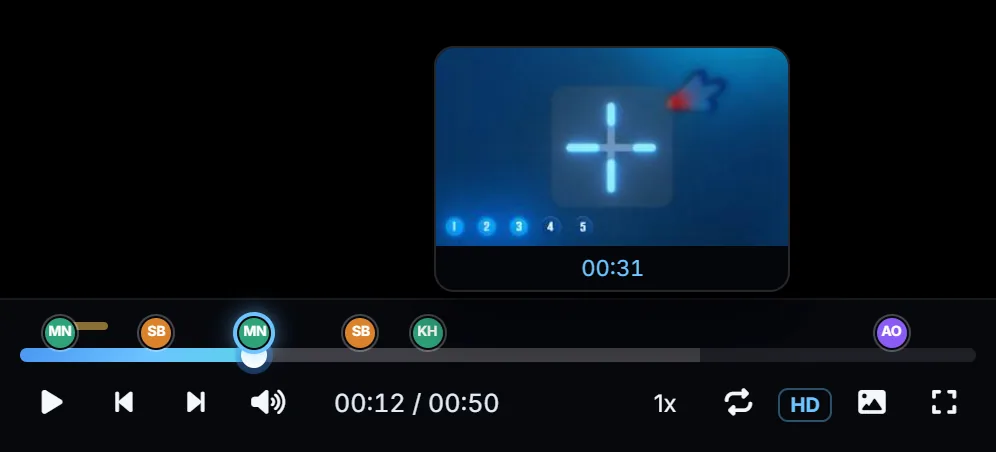
Comments are not just messages, they are tasks. Work through the list on the previous version one by one:
- Open the version the client commented on.
- Click a comment. The player jumps to its exact frame or range.
- Make the change in your edit.
- Mark the comment as resolved.
When every comment is resolved, you know the new version is ready, and anyone on the team can see it at a glance instead of asking you.
Before you send the new version: a 5 minute check
- Every comment on the previous version is resolved, or has a reply explaining why not.
- Compare view at the moments that changed. Watch the before and after of each note.
- Play the whole cut once at normal speed. Fixes sometimes break something next to them, like a cut that now lands on a different beat.
- Check the end. Logos, legal lines and calls to action are where last minute notes live.
Then upload the new version on top, and write one line to the client: "Version 3 is up on the same link, all notes from version 2 are done."
When the client changes their mind
It happens: version 4 undoes something they asked for in version 2. With every version and every note kept in one place, this stops being an argument. You open the old version, show the comment, and decide together. No one has to dig through chat history.
For the full review process around versions, see our video approval workflow from first cut to final, and for how to send each version, how to share a video with a client for review.
FAQ
Do comments carry over to the new version?
No, and that is on purpose. Each version keeps the comments written on it, so you can check that the notes on version 2 were done in version 3.
Does the client need a new link for each version?
No. Upload the new version on top of the old one and the same link shows the newest cut.
Can I compare an image or a still frame too?
Yes, two versions of an image open side by side as well. Synced playback applies when both versions are videos.