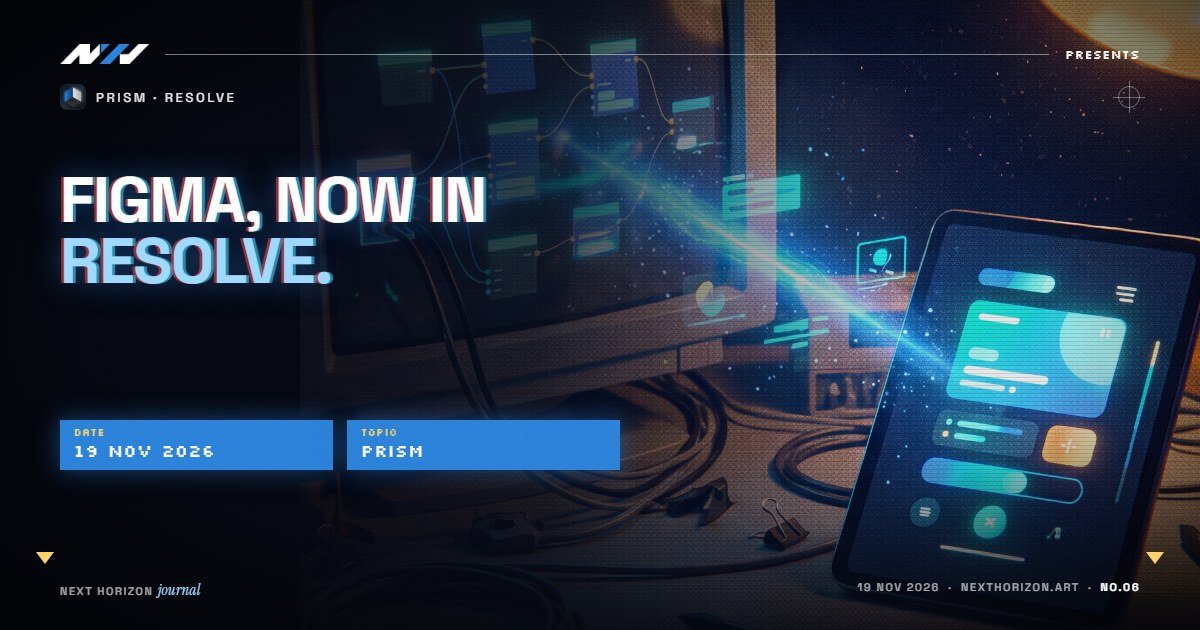
Can you actually bring a Figma design into DaVinci Resolve without redrawing everything?
Yes, you can move a Figma design into DaVinci Resolve and work with it inside Fusion as editable elements. The most direct path is exporting your Figma frames and either importing them as flat images or using a tool like Prism to bring layers across in a way that keeps things actually editable. Flat PNG exports work, but they kill your flexibility.
I want to be honest with you: the Figma to DaVinci Resolve pipeline is not something that just works out of the box. Resolve is a brilliant tool, Fusion is genuinely powerful, and Figma is where most UI and product design lives right now. But the bridge between them? It's been duct tape and workarounds for years. If you've ever spent an afternoon manually recreating a UI layout as Fusion nodes, only to get a revision request the next morning, you know exactly the feeling I'm talking about.
So let's talk about what actually works, what doesn't, and where your time is best spent.
Why is rebuilding Figma designs in Fusion so slow and painful?
Because Fusion doesn't speak Figma's language natively. When you export from Figma, you're usually choosing between a flattened image (fast but dead) or trying to piece things together from individual exports (slow and fragile). Fusion is a node-based compositor, which is powerful, but it means every layer you want to control independently needs its own node chain.
Think about a typical SaaS product screen. You've got a nav bar, a hero section, some cards, icons, maybe a modal. In Figma that's one clean frame with organized components. In Fusion, to animate each of those pieces separately, you'd need to:
- Export every element individually from Figma
- Import each one into Resolve's media pool
- Build a node tree that positions them correctly relative to each other
- Hope nothing shifts when the client sends a revised design file
And then the client sends a revised design file. Always.
The real cost isn't the hours you spend building the node tree. It's the hours you spend rebuilding it after the third round of revisions.
This is where the figma to davinci resolve workflow breaks down for most editors and motion designers. It's not that they don't know what they're doing. It's that the tooling makes an already complex job unnecessarily repetitive.
What does Prism actually do for this workflow?
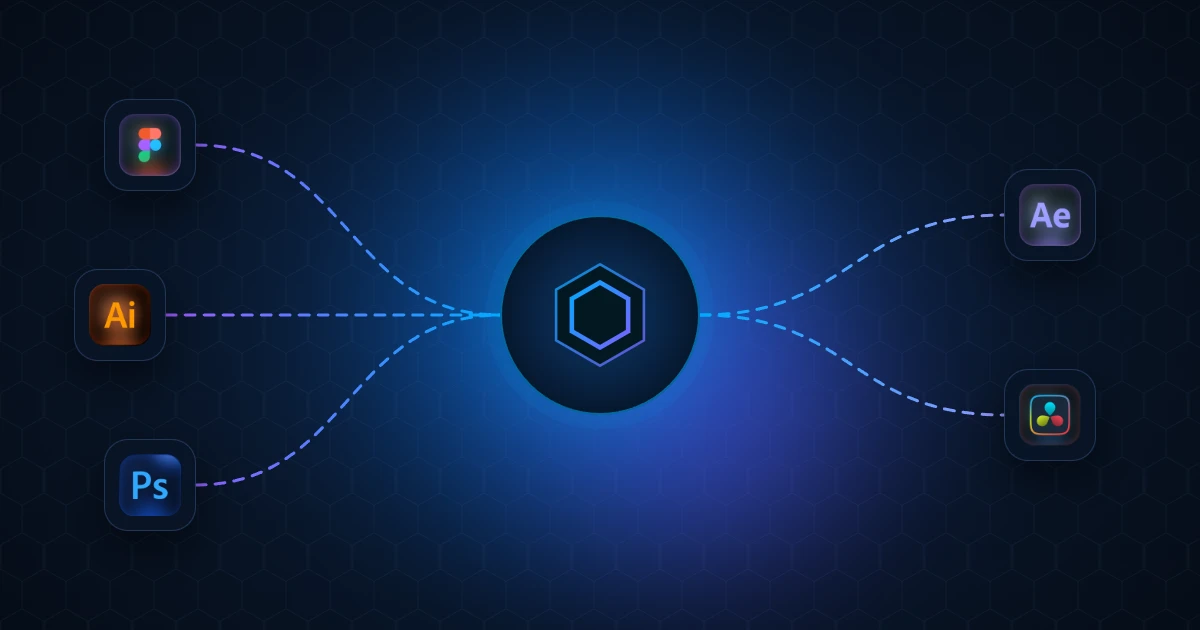
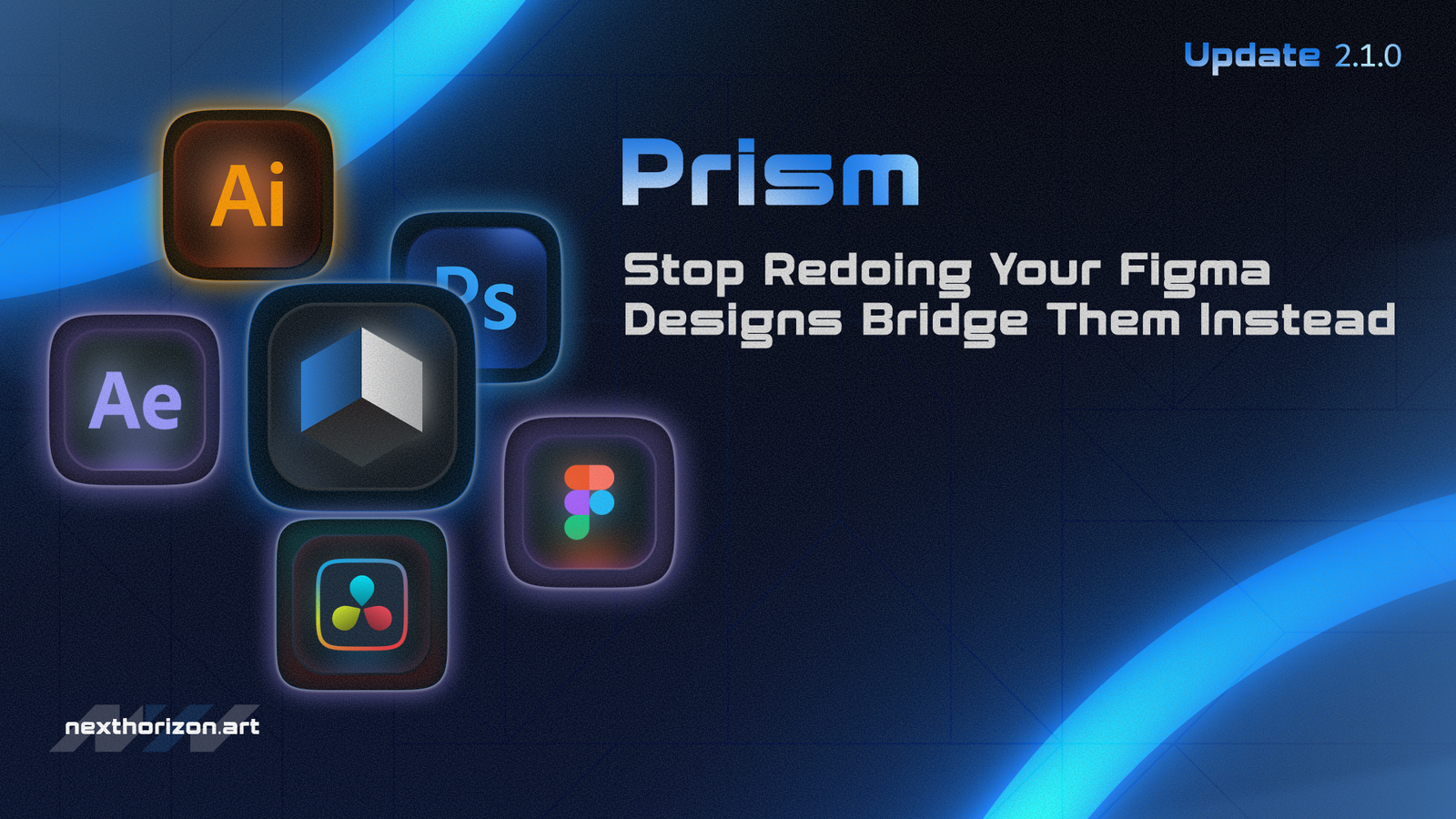
Prism is a Figma plugin built by us at Next Horizon, and it was made specifically to solve this problem. Instead of forcing you to export flat images or manually reconstruct your layout in Fusion, Prism exports your Figma frame in a format that brings layers across as editable elements. The goal is simple: your Figma design should land in your compositor ready to animate, not ready to be rebuilt from scratch.
Starting at $69, it's the kind of tool that pays for itself the first time you skip a two-hour node-building session. You can check it out and grab it on the Prism product page.
What matters for the figma to davinci resolve use case specifically is that you're not just getting a pretty export. You're getting structure. Layers stay as layers. Positions are preserved. You can go into Fusion and actually adjust, animate, and modify individual elements without digging through a mess of merged pixels.
If you want to see what this kind of work looks like in practice, our portfolio has a few UI animation projects that started exactly this way, with a Figma file and a tight deadline.
What's the actual step-by-step process for moving Figma into Fusion?
Here's how the workflow goes when you're doing this properly, not the desperate-Sunday-night version.
Step 1: Organize your Figma file first
This sounds obvious, but it makes a real difference. Group and name your layers before you export anything. Fusion is going to reflect the structure you give it. Unnamed layers and tangled groups will come back to haunt you.
Step 2: Use Prism to export from Figma
Run Prism on your selected frame. It handles the heavy lifting of preserving layer order and positioning so you're not doing it by hand inside Resolve.
Step 3: Import into Resolve and open Fusion
Bring your exported assets into the media pool, then drop into Fusion. You'll see your elements come in with their structure intact. From here, you're doing actual creative work, adding animations, building transitions, adjusting timing. Not reconstructing a layout you already built once in Figma.
Step 4: Animate with real control
Because your layers are editable nodes rather than a flat composite, you can keyframe individual elements, apply effects to specific parts of the UI, and make changes without touching everything else. This is the whole point of the figma to davinci resolve workflow done right.
Is this worth learning if I already know After Effects?
Honestly? It depends on what you're doing and where your work lives. After Effects has a longer history with this kind of UI animation work, and there's more existing tooling around it. If your whole pipeline runs through Premiere and After Effects, switching to Resolve just for this workflow probably isn't worth the disruption.
But if you're already editing in DaVinci Resolve, or if you're doing color grading and finishing in Resolve and you want to keep the whole post pipeline in one place, then yes, learning the Fusion side of this is absolutely worth it. Fusion is a professional compositor. It just hasn't had the same ecosystem of motion design plugins that After Effects has. That gap is getting smaller.
The figma to davinci resolve path is real, it's usable, and with the right export workflow, it's genuinely efficient. The key is not fighting the tool. Set up your Figma file cleanly, export with structure, and let Fusion do what it's actually good at.
If you're curious about how we approach motion graphics projects at Next Horizon, our motion graphics work gives you a good sense of the kind of output this workflow can produce.
And if you want to shortcut the painful part of this process, Prism exists for exactly that reason. Grab it, run it on your next UI animation project, and see how much time you get back.
Frequently Asked Questions
Can you import Figma files directly into DaVinci Resolve?
Not natively. DaVinci Resolve doesn't read Figma files directly. You need to export your design first, either as flat images or using a plugin like Prism that preserves layer structure. Flat exports work but limit your ability to animate individual elements inside Fusion.
How do I get Figma layers into Fusion as separate nodes?
The manual way is to export each layer individually from Figma and rebuild their positions inside Fusion by hand. The faster way is to use a plugin like Prism, which exports your Figma frame with its structure intact so layers come into Fusion as separate, editable elements without the manual reconstruction.
Is DaVinci Resolve good for UI animation?
Fusion, the compositor built into DaVinci Resolve, is capable of solid UI animation work. It's node-based, which gives you a lot of control once your assets are set up correctly. The main gap has been tooling for importing design files, which is why the Figma to DaVinci Resolve workflow requires some extra setup.
What's the difference between animating UI in After Effects vs DaVinci Resolve?
After Effects has a longer history with motion graphics and a larger plugin ecosystem for UI animation. Fusion in DaVinci Resolve is node-based and more common in finishing and VFX pipelines. If your whole workflow already lives in Resolve, learning Fusion for UI animation makes sense. Otherwise, After Effects is usually the easier starting point.
What is Prism and how does it help with Figma to DaVinci Resolve?
Prism is a Figma plugin made by Next Horizon that exports your design frames with their layer structure preserved, so you can bring UI designs into compositors like Fusion without rebuilding everything manually. It starts at $69 and is designed to remove the most time-consuming part of the UI-to-compositor workflow.