Most video projects do not go over time because of editing. They go over time in the review stage: unclear notes, missed comments, and clients approving the wrong version. The fix is not a longer brief. It is a clear, repeatable approval workflow that everyone follows.
Here is the workflow we use at Next Horizon for motion graphics and video projects. It works for a freelancer with one client and for a studio with ten projects running at the same time.
Step 1: Agree on the number of review rounds before you start
Write it in the quote: for example, two rounds of revisions included, extra rounds billed. This is not about being strict. It gives the client a reason to collect all their notes in one pass instead of sending them one at a time over a week.
Also agree on who has the final word. If three people will watch the cut, one of them must be the person who clicks "approve".
Step 2: Export a review file, not a master
For review, you do not need a heavy ProRes master. Export an H.264 MP4 at 1080p with a reasonable bitrate. It uploads quickly, plays instantly in any browser, and looks good enough for the client to judge timing, text and colour.
- Keep the file under a few hundred megabytes whenever possible.
- Burn in nothing. A clean frame makes drawn notes easier to read.
- Name the file clearly, for example ClientName_Promo_v1.mp4.
Step 3: Upload once, share one link
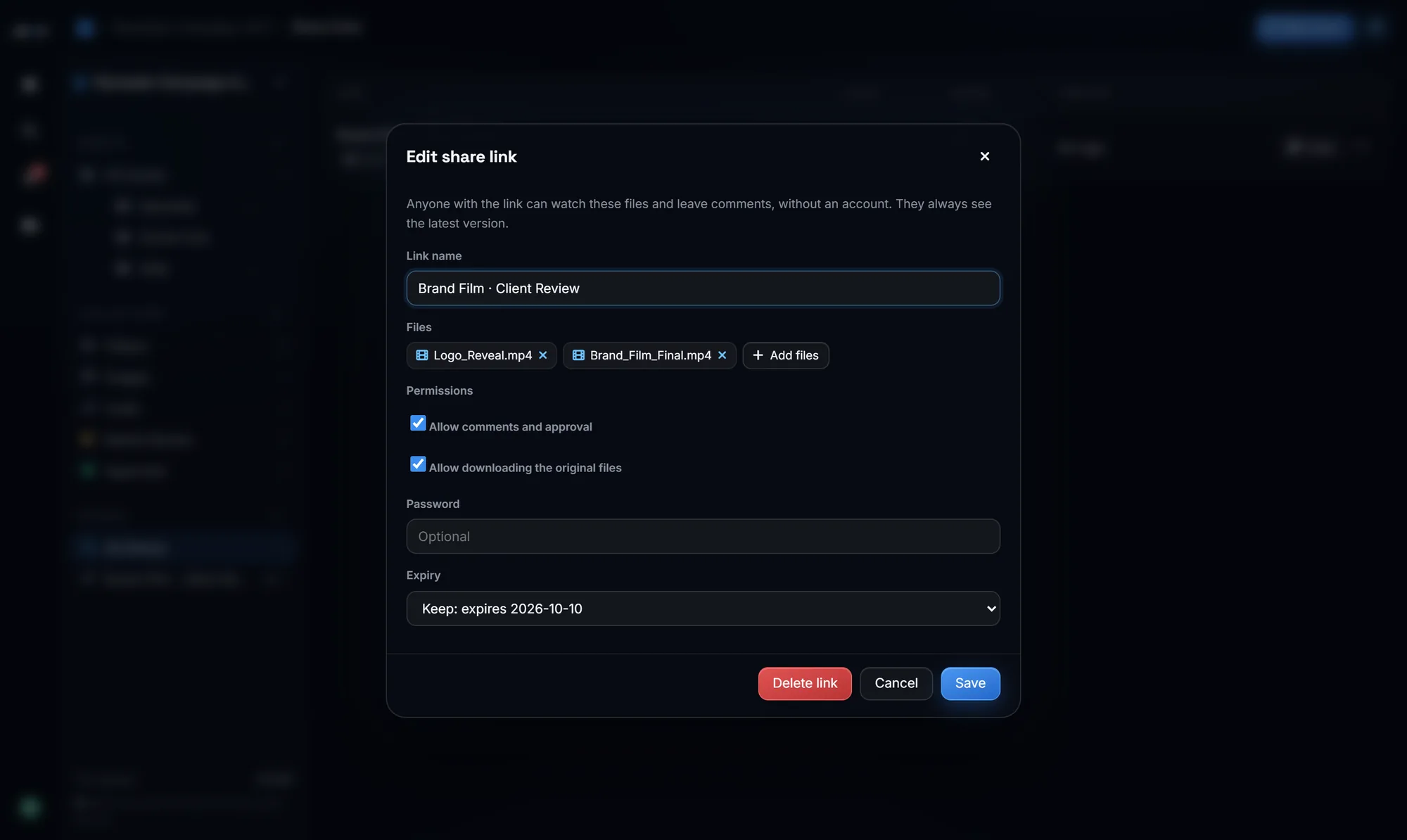
Upload the cut to a review tool instead of a generic file drive. In Next Horizon Review you create a project, drop the file in, and create a share link. Before sending it, set the link options:
- Password if the video is confidential.
- Expiry date so old links stop working after the project.
- Downloads off until the video is approved and paid. The client can watch and comment, but there is no download button.
- Comments on so the client can leave notes.
Step 4: Tell the client exactly how to give feedback
One short message saves a whole round. Something like:
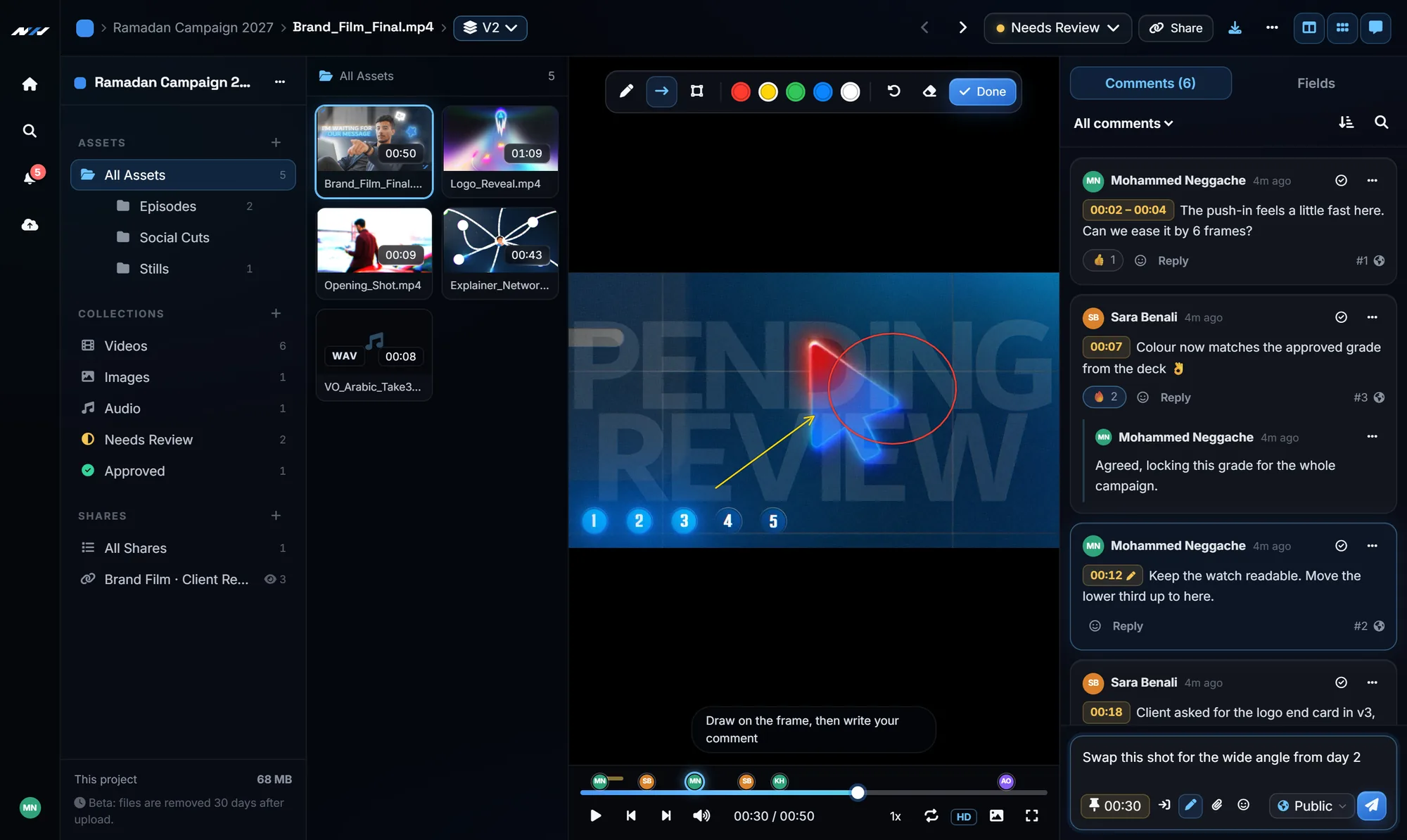
"Here is version 1. Pause the video where you want a change, write your note, and draw on the frame if it helps. When all your notes are in, click Request changes. If everything is good, click Approve."
That is all the training a client needs. They do not need to create an account or install anything.
Step 5: Triage the notes before you touch the timeline
When the client clicks "request changes", read every comment first. Each note is pinned to a frame, so you can click through them in order and see the exact moment.
- Reply in the thread if a note is unclear, before you start working.
- Use internal comments for notes to your own team. The client never sees them.
- Mention a teammate with @ so they are notified about a note.
Then work through the list in the editor and mark each comment as resolved when it is done. At the end, nothing is forgotten, because the list tells you what is left.
Step 6: Upload version 2 on top of version 1
Do not send a new link. Upload the new cut as a new version of the same file. The link the client already has will now open version 2, and the older version stays available in the history.
This is where most confusion disappears. There is only ever one link, and it always shows the latest cut.
Step 7: Compare, then ask for the decision
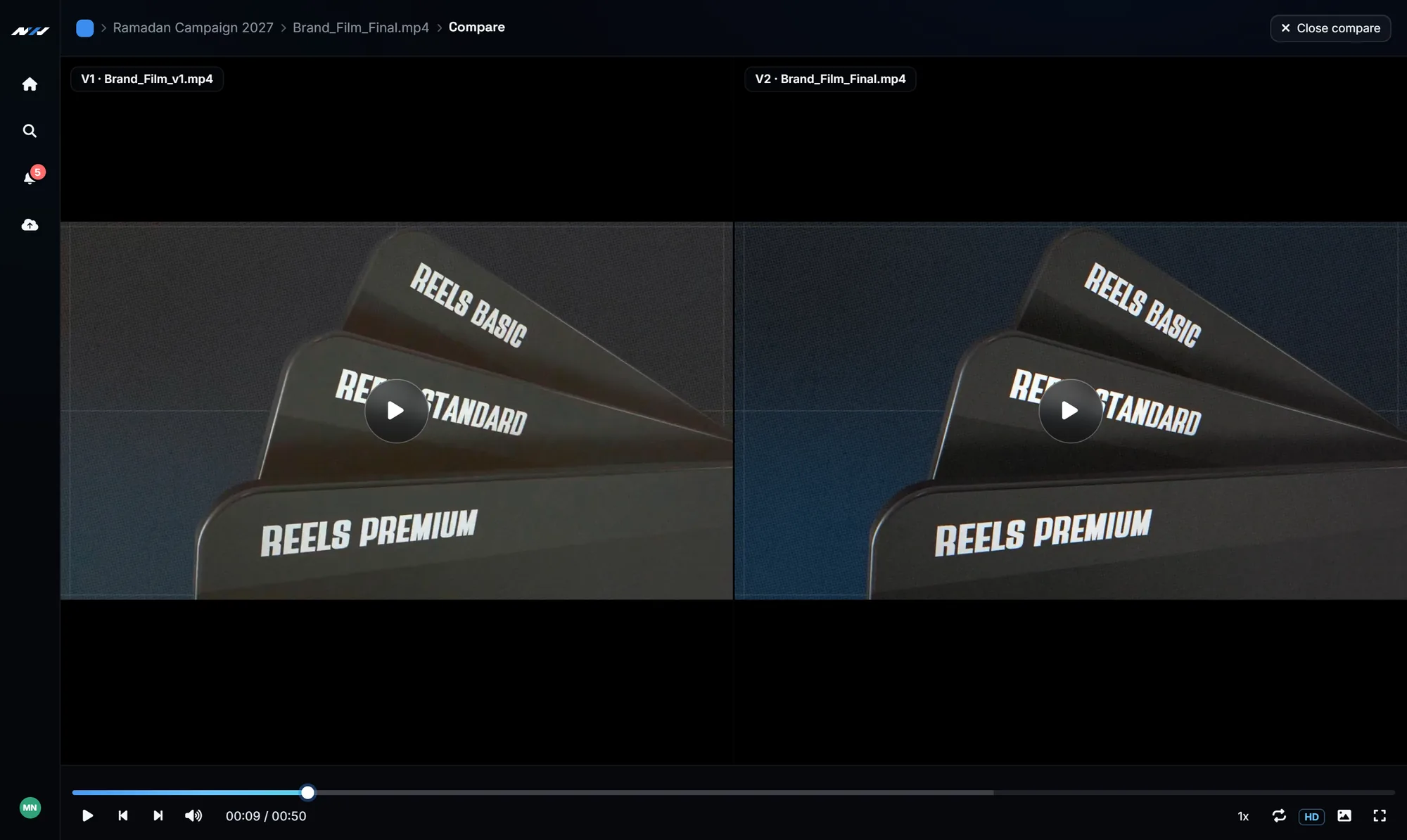
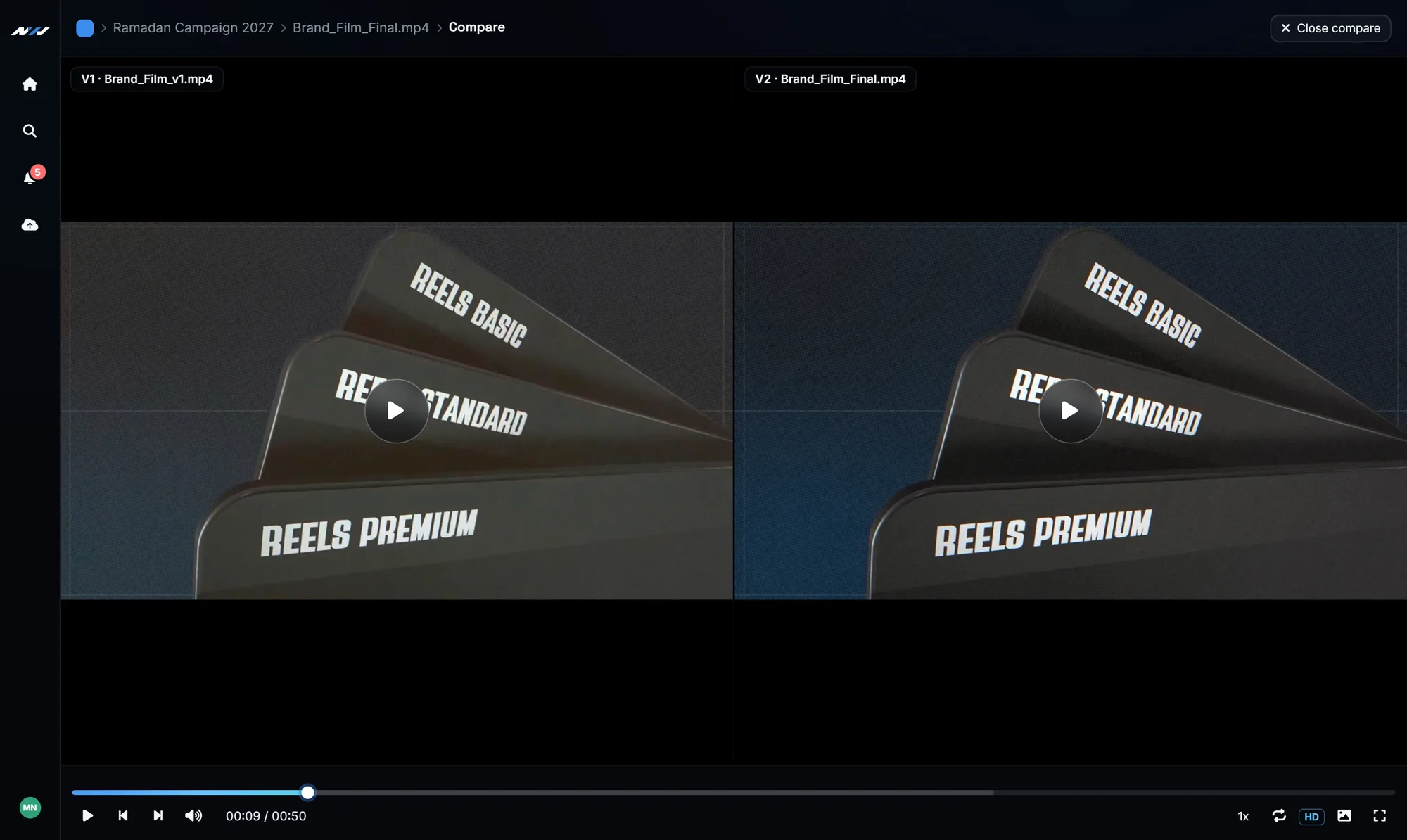
Before you notify the client, compare version 1 and version 2 side by side and go through the resolved notes once more. It takes five minutes and catches the note you thought you had fixed.
Then send a short message: "Version 2 is up on the same link, all notes applied." Ideally, the next thing you receive is an approval notification.
Step 8: Approval, then delivery
Once the client approves, the status of the file changes to approved and you have a clear record of who approved which version and when. Now you can export the final master, turn downloads on for the link if you deliver through it, and close the project.
The workflow in one list
- Agree on rounds and on who approves.
- Export a light H.264 MP4 for review.
- Upload once, share one protected link.
- Tell the client how to comment and decide.
- Read every note, clarify, then fix and resolve.
- Upload the next cut as a new version on the same link.
- Compare versions, then ask for the decision.
- Approve, deliver, close.
If you are still collecting notes through chat apps, start with our article on why client feedback on WhatsApp slows projects down. It explains where the lost time actually goes.
Frequently Asked Questions
How many revision rounds should a video project include?
Two rounds is a common and fair default for promos and motion graphics. The important part is to write the number in the quote, so extra rounds are a clear conversation instead of a surprise.
Can I stop the client from downloading the video before payment?
Yes. Each share link has a download setting. Keep it off during review, and turn it on only when you are ready to deliver.
What happens to the old link when I upload a new version?
Nothing changes for the client. The same link now opens the newest version, and earlier versions stay in the history so you can compare them.
Can my team leave notes the client will not see?
Yes. Mark a comment as internal and it stays visible only to your team, never on the client's share link.