You finished the cut. Now it has to reach the client, and this is where a lot of projects quietly lose a day. A drive folder with three files called final, final_v2 and final_REAL. A download link that expires before the client opens it. A 400 MB attachment that WhatsApp refuses. Then the question that always comes back: "which one am I supposed to watch?"
Sharing a video for review is not the same as sending a file. The client does not need the file. They need to watch the right version, say what they think, and decide. This article walks through how to share a cut so that is the only thing they have to do.
What a client actually needs from a review link
- It plays immediately. No download, no app to install, no "this file type is not supported" on their phone.
- It shows one thing. The cut you want feedback on, not a folder of everything you exported this week.
- It tells them what to do. Comment, then approve or ask for changes.
- It does not ask them to sign up. Every account you ask a client to create is a reason for them to reply "I'll look at it tomorrow".
Everything else is for you: control over who can see it, how long it lives, and whether the original file can be downloaded.
Step 1: export a review copy, not your master
Your delivery master might be ProRes or a high bitrate file that browsers cannot play. For review, export an H.264 MP4. It is small, uploads fast and plays in every browser, on laptops and phones. Keep the master for the final delivery.
Step 2: create one link per round of feedback
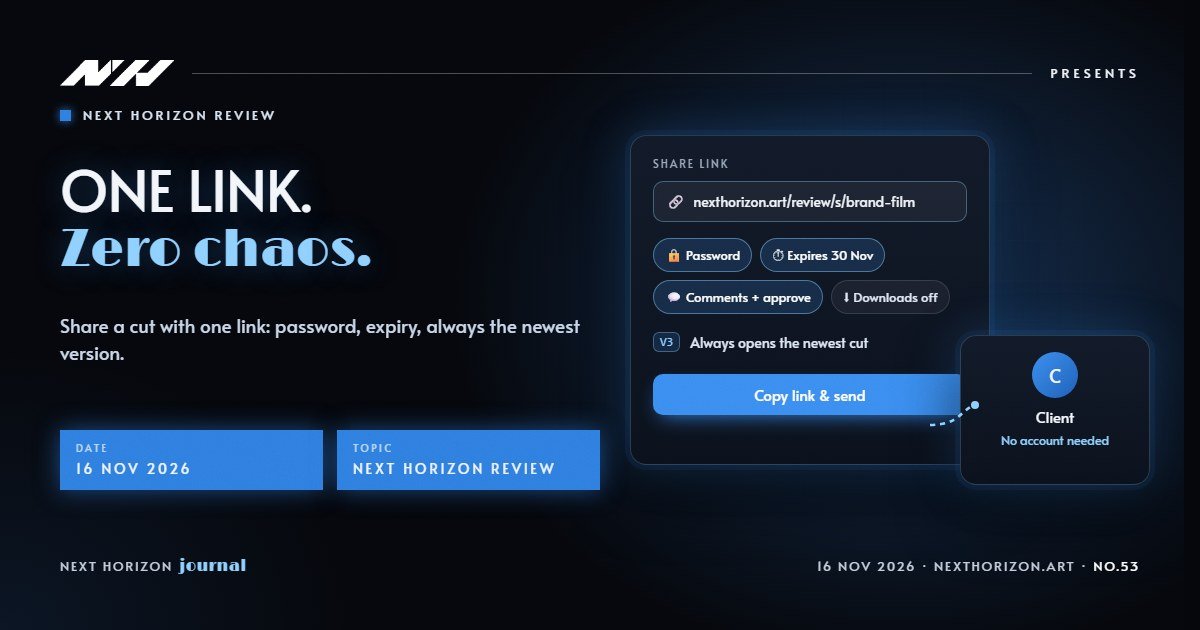
In Next Horizon Review you upload the cut to the project, then create a share link and pick exactly which files it contains. Give the link a clear name, like Brand Film, client review, so you can find it later in the list of shares.
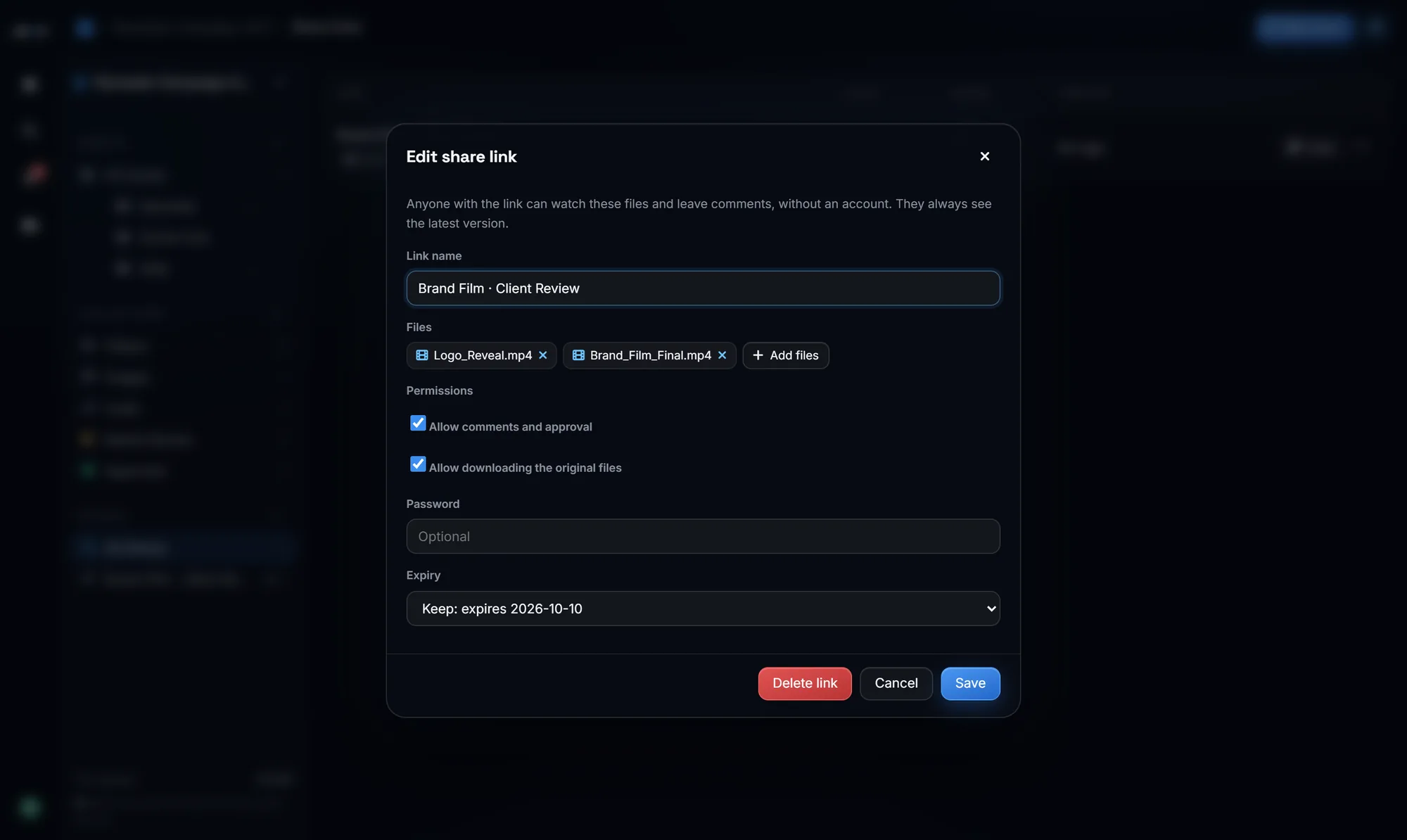
Step 3: set the permissions before you send it
Three switches cover almost every situation:
- Allow comments and approval. On for a review round. Turn it off when you only want to show a cut, for example to a stakeholder who should watch but not give notes.
- Allow downloading the original files. Off during review, so an unapproved cut does not get posted by mistake. Turn it on for the final delivery.
- Password and expiry. Add a password for confidential work, and an expiry date when a campaign has an embargo. Delete the link and it stops working at once.
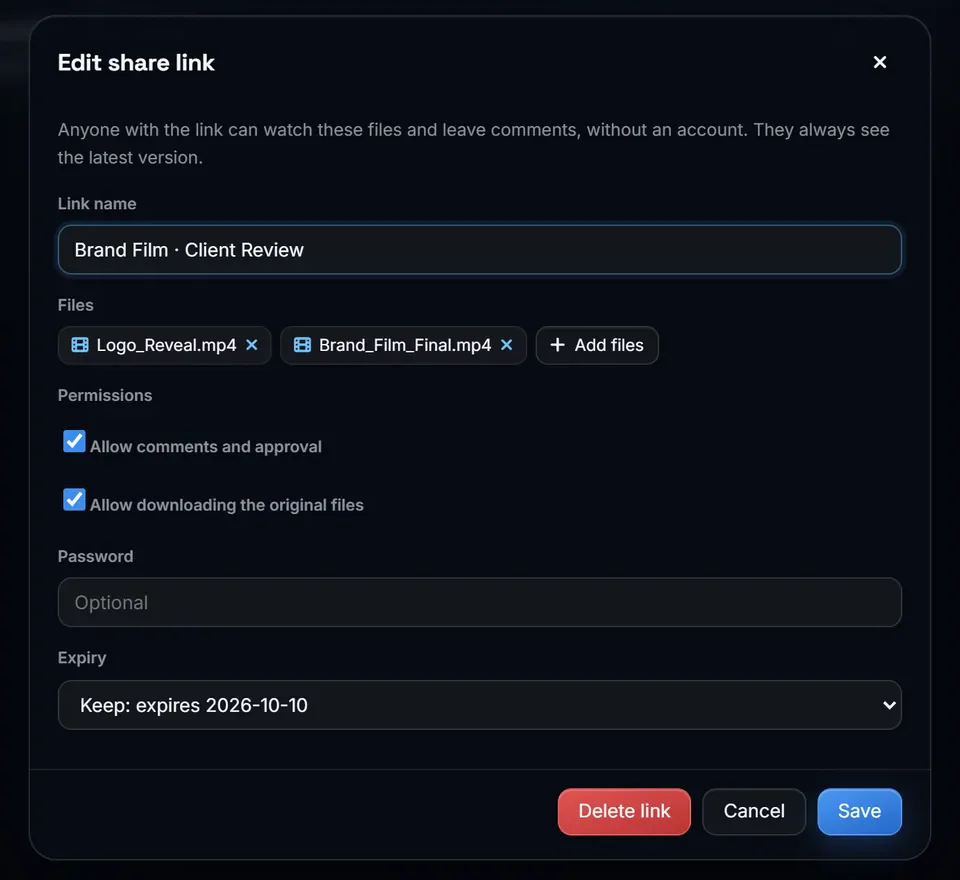
Step 4: write a two line message with the link
The link does most of the work, but a short message still helps. Something like:
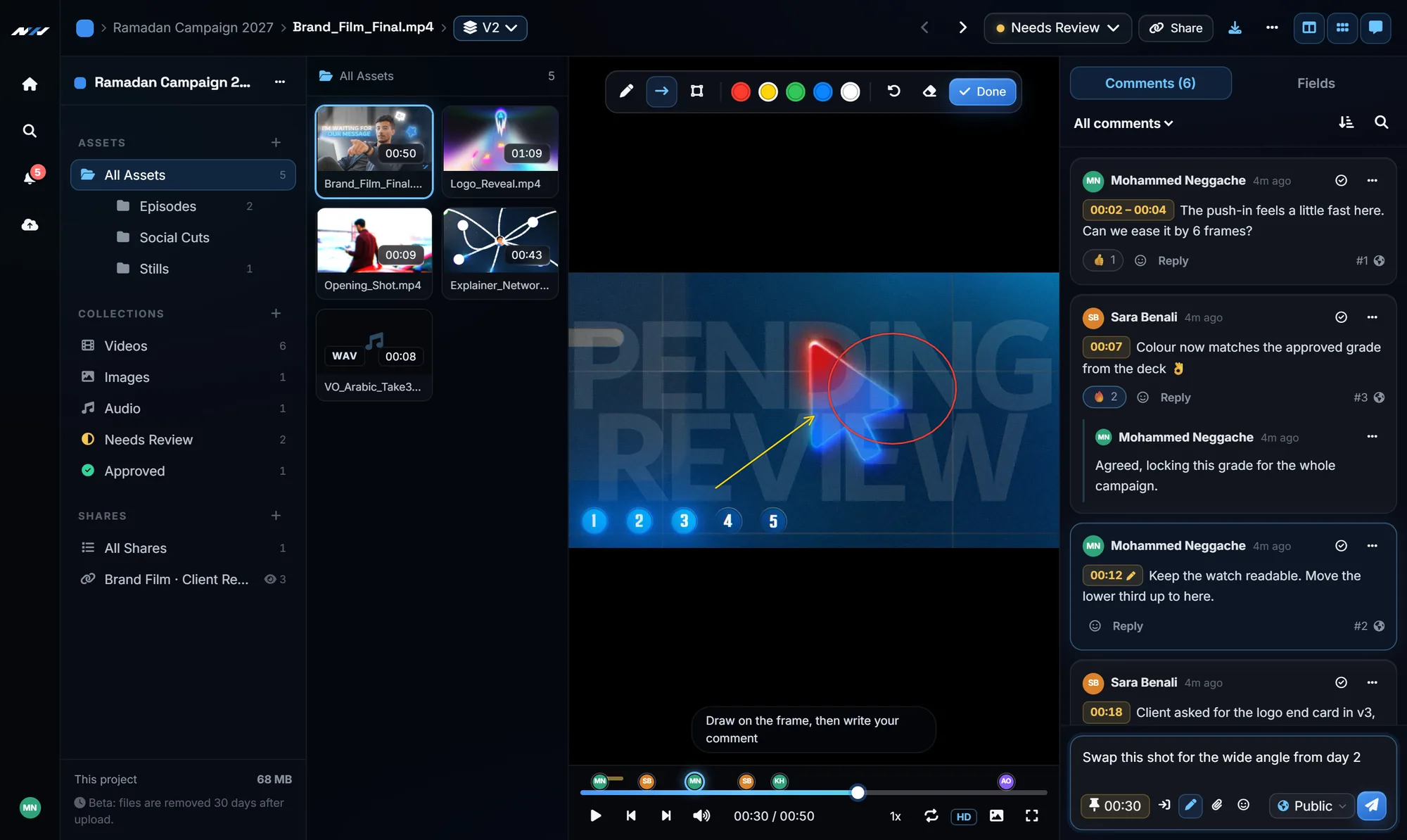
Here is version 2 of the brand film. Pause anywhere to leave a note on that exact moment. When you are happy, press Approve.
That is all. No instructions about software, no list of steps. The client opens the link, types their name once, and they are in.
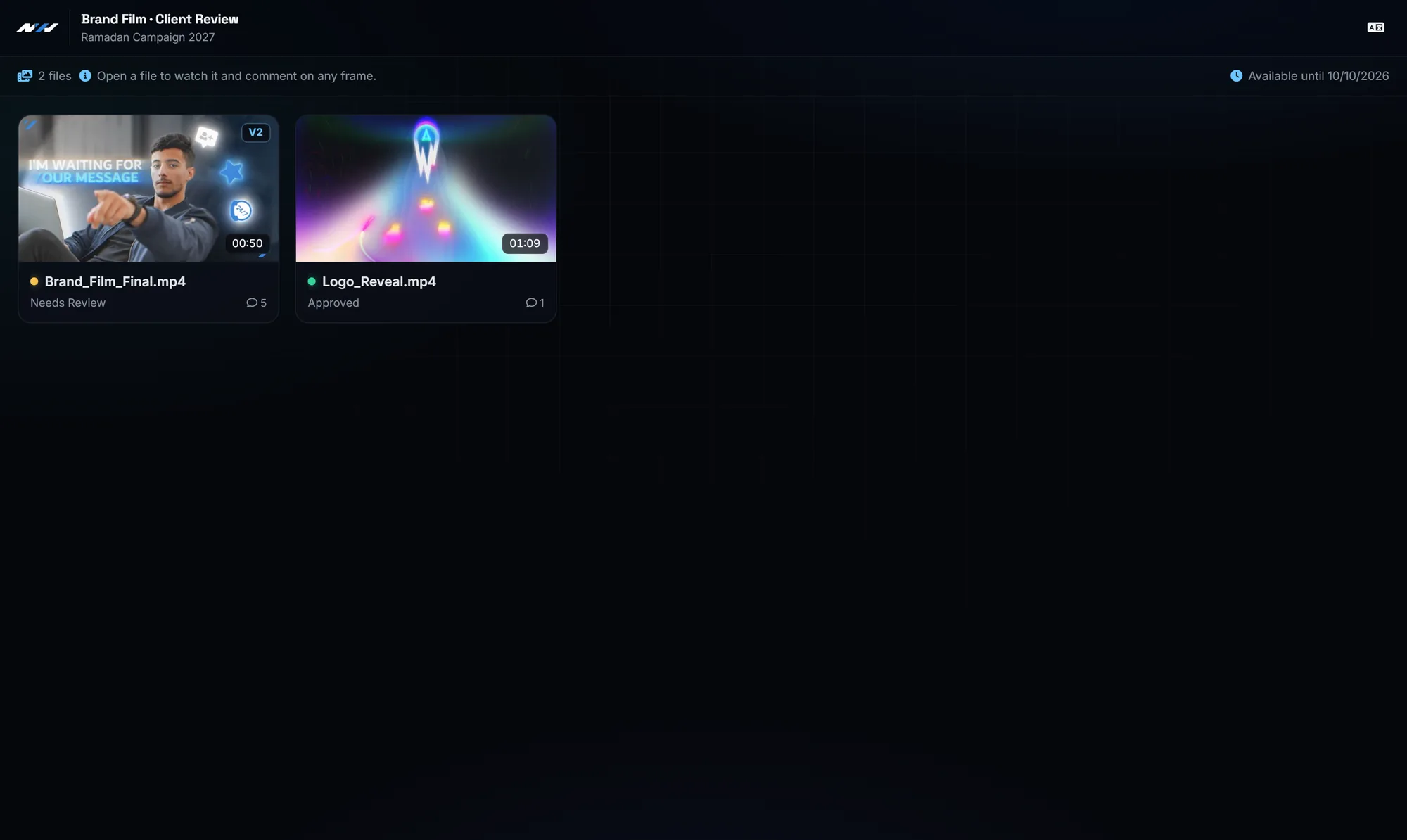
Step 5: upload the next version to the same place
When notes come back and you export version 3, upload it on top of version 2 in the project. The link you already sent shows the newest cut automatically, so there is never a second link, and never a client watching an old version. Earlier versions stay in the history if anyone wants to compare.
Common mistakes to avoid
- Sending the drive folder. The client will open the wrong file. Share the cut, not the folder.
- Allowing downloads on a draft. Drafts end up on social media more often than you would think.
- One link for everything forever. Create a new link for a new deliverable, so each one has its own clean comment history.
- Asking for feedback "by Friday" with no way to approve. Give the client a clear finish line: the Approve button.
If you want the full process around this, from first cut to final sign-off, read our simple video approval workflow. And if your feedback still arrives as voice notes, this is why chat apps slow video projects down.
FAQ
Does my client need an account to open the link?
No. They open the link, type a name once, and can watch, comment, draw on the frame and approve.
Can I stop a link after I have sent it?
Yes. Delete the link and it stops working immediately. You can also set an expiry date in advance.
Which file format should I share for review?
An H.264 MP4. It plays in every browser and on every phone. Formats like ProRes are refused because browsers cannot play them.