The .ai File Problem Nobody Talks About Enough
Getting artwork from Illustrator to After Effects in a way that actually works for animation is one of the most quietly frustrating parts of motion design. You finish a detailed illustration, hand it off to AE, and suddenly half your carefully named layers are merged into a single shape, groups are gone, and what was a clean, organized file looks like somebody ran it through a blender. If you've been there, you know the feeling of staring at a collapsed layer and thinking "I am going to have to rebuild this by hand, aren't I."
The standard Illustrator to After Effects import has always had real limitations. After Effects reads .ai files, sure, but it doesn't always understand them the way you need it to. Shapes get merged. Live effects are flattened. The "Convert to Shape Layers" option helps sometimes, but it's unpredictable and slow on complex files. So you end up spending an hour or two just getting your file to a usable state before you've animated a single keyframe.
The worst part isn't the cleanup itself. It's doing that cleanup on every single project, every single time, like the problem has never been solved before.
Why This Keeps Happening
After Effects wasn't originally designed to be a deep translation layer for vector illustration files. It can open .ai files and it can interpret layers, but the relationship between Illustrator's document structure and AE's layer system is imperfect at best. Illustrator organizes things in groups, sublayers, and compound paths. After Effects wants discrete, animatable layers. Those two mental models don't line up cleanly.
When you bring in a complex .ai file, AE makes judgment calls about what to merge and what to keep separate. Sometimes it gets it right. Often it doesn't. And the more complex the illustration, the worse the result tends to be. I've worked on projects where the original Illustrator file had maybe 80 organized layers and the AE import came through as 12, with no obvious logic to what got grouped together.
The manual workaround tax
What most motion designers end up doing is a combination of things: pre-splitting layers in Illustrator before export, using scripts to convert shapes, manually ungrouping and renaming in AE, sometimes rebuilding parts of the artwork as native AE shapes from scratch. All of that is time. And time on a project budget isn't abstract, it's real money, often yours.
If you're doing this across multiple client projects a month, you're probably losing several hours per project to file prep alone. That's not creative work. That's just friction.
What Prism Actually Does Differently
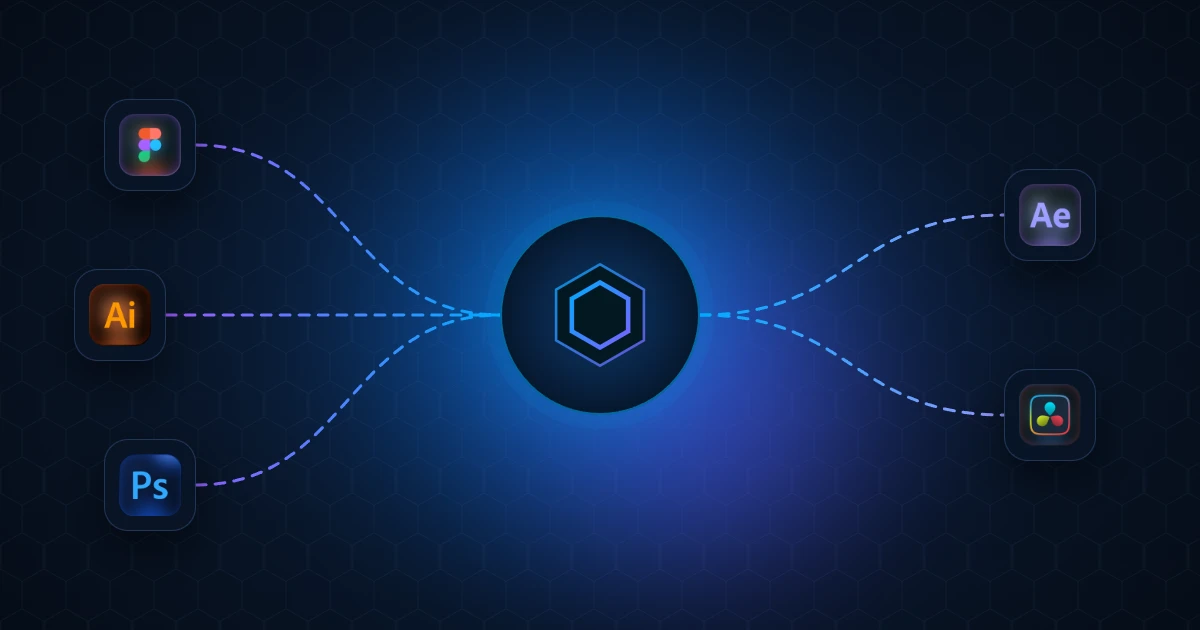
Prism is a plugin we built at Next Horizon, originally for the Figma to After Effects pipeline, but the core idea applies directly to Illustrator workflows too: send artwork into After Effects as properly structured, editable layers without the manual cleanup in between.
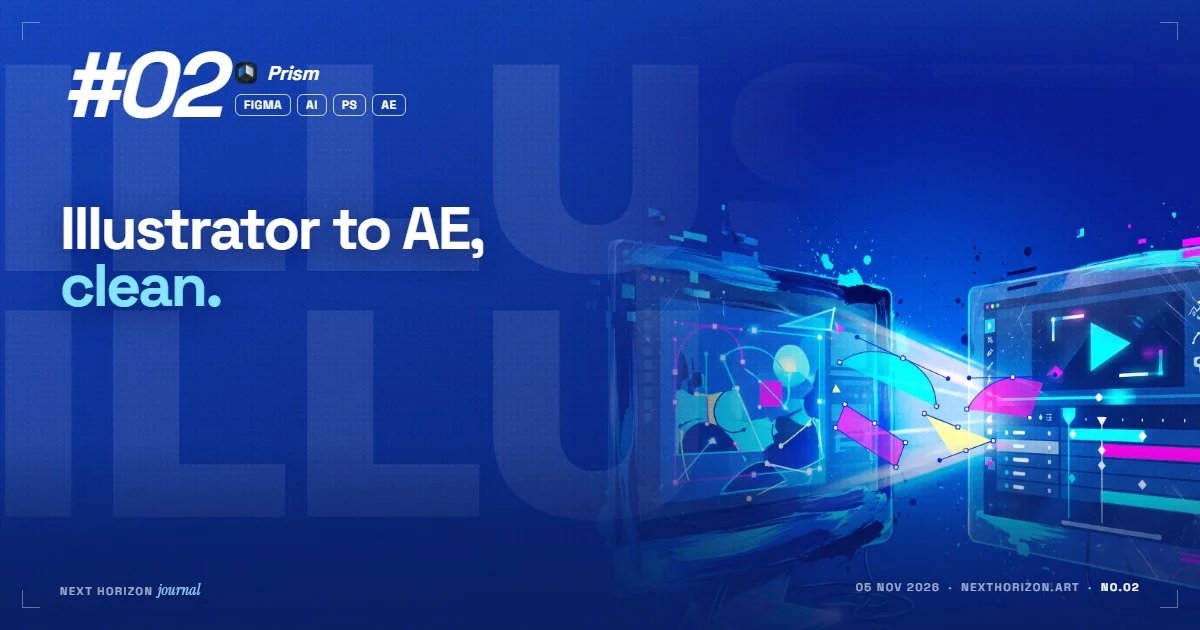
Instead of relying on AE's native .ai import and hoping for the best, Prism gives you control over how the artwork arrives. Layers stay named. Groups are preserved as you intended them. Shape layers come through as actual AE shape layers, editable and ready to animate, not as flattened footage items or mystery blobs that used to be your illustration.
What you actually get on the AE side
- Layers that match your source file structure, named and organized
- Shape layers that are natively editable in After Effects
- No more hunting through merged groups to find the element you need to animate
- A composition that's actually ready to work with, not one that needs an hour of prep first
The difference in a real project is significant. What used to be a two-hour cleanup task at the start of every animation job becomes something you skip entirely. You open AE, your layers are there, you start animating. That's how it should feel.
You can see more of how we approach motion work over at our motion graphics page, but the short version is: clean file structure at the start of a project makes everything downstream faster and less stressful.
A Realistic Walkthrough of the Workflow
Here's how a typical project looks when you're using Prism instead of the native import route.
You finish your artwork in Illustrator. Everything is organized the way you want it: characters on their own layers, background elements separated, any UI or text elements isolated. That organization is the work you've already done, and you don't want to redo it in AE.
With Prism, you push that file through and it lands in After Effects with the same logic intact. Your character layers are still separate. Your background is still its own group. You're not starting from scratch or spending the first part of your session in cleanup mode.
From there, you animate. That's it. The plugin handles the translation so you can focus on the actual motion design work, which is the part that requires your creative judgment and can't be automated away.
What it costs and where to get it
Prism starts at $69. For anyone who's calculated how much time they've spent on AI file cleanup over the past year, that number probably feels very reasonable. One session of saved prep time and it's already paid for itself.
If you work with complex illustrated assets regularly and the illustrator to after effects pipeline is a constant source of friction on your projects, this is worth taking a serious look at.
Ready to stop rebuilding your Illustrator files every time they hit After Effects? Here's where you can grab Prism and try it on your next project.
The Bigger Picture
The illustrator to after effects handoff is one of those problems that feels small until you add up how often it hits you. It's not one catastrophic failure. It's a hundred small delays, a hundred moments of rebuilding something that should already be done.
Good tooling is about removing that friction so you can spend your time on work that actually matters. If you want to see the kind of output that's possible when the technical side of a project isn't eating your hours, take a look at some of our recent work in the portfolio. That quality comes from having tight, efficient workflows under the hood.
At Next Horizon, we build tools and produce motion work with the same goal in mind: less friction, better output. If you're curious how we can help on your next project, we're always up for a conversation.
Frequently Asked Questions
How do I import an Illustrator file into After Effects with editable layers?
When importing an .ai file, choose Import As: Composition and select Retain Layer Sizes. This keeps your Illustrator layers separate in AE. For complex files, tools like Prism can automate this and deliver properly named, editable shape layers without the manual cleanup that native import often requires.
Why do my Illustrator layers merge when I open them in After Effects?
After Effects and Illustrator use different internal logic for grouping and organizing artwork. AE makes its own judgment calls during import, which often collapses sublayers and compound paths into single merged layers. The more complex the file, the worse this tends to get. Pre-splitting layers in Illustrator before export can help reduce it.
What is the best way to convert Illustrator artwork to shape layers in After Effects?
Right-click a footage layer in AE and choose Create Shapes from Vector Layer. It works reasonably well on simple artwork, but on complex illustrations it can produce messy results or miss elements entirely. A cleaner alternative is to use a dedicated plugin that handles the conversion as part of the import process, keeping your layer structure intact.
Is it worth using a plugin for the Illustrator to After Effects workflow?
If you animate illustrated assets regularly, yes. The native import process works for simple files but breaks down on anything complex. A plugin that preserves layer names, groups, and shape editability saves real time on every project. For studios or freelancers doing this daily, the time recovered pays for the tool quickly.
What is Prism and how does it help with Illustrator files?
Prism is a plugin from Next Horizon that sends vector artwork into After Effects as organized, properly named, editable layers. It removes the cleanup step that normally follows a native .ai import, so you can go straight from your finished illustration into animation without rebuilding your file structure on the AE side.