The Handoff Problem Nobody Talks About Enough
You've spent days getting the design right in Figma. Every spacing decision is intentional. Every color is on-brand. The client approved it. Everyone's happy. And then you open After Effects and spend the next three hours rebuilding the whole thing from scratch manually recreating layers, guessing at font sizes, and wondering why you didn't just become an accountant.
This is the moment where a lot of great design energy dies quietly. The motion designer isn't lazy. The workflow is just broken. The gap between a static Figma file and a live After Effects composition has always been one of those invisible costs that nobody budgets for and everybody absorbs. Until recently, there wasn't a clean way to fix it.
That's where Prism comes in. And I want to give you an honest take on it not a sales pitch.
What Prism Actually Does
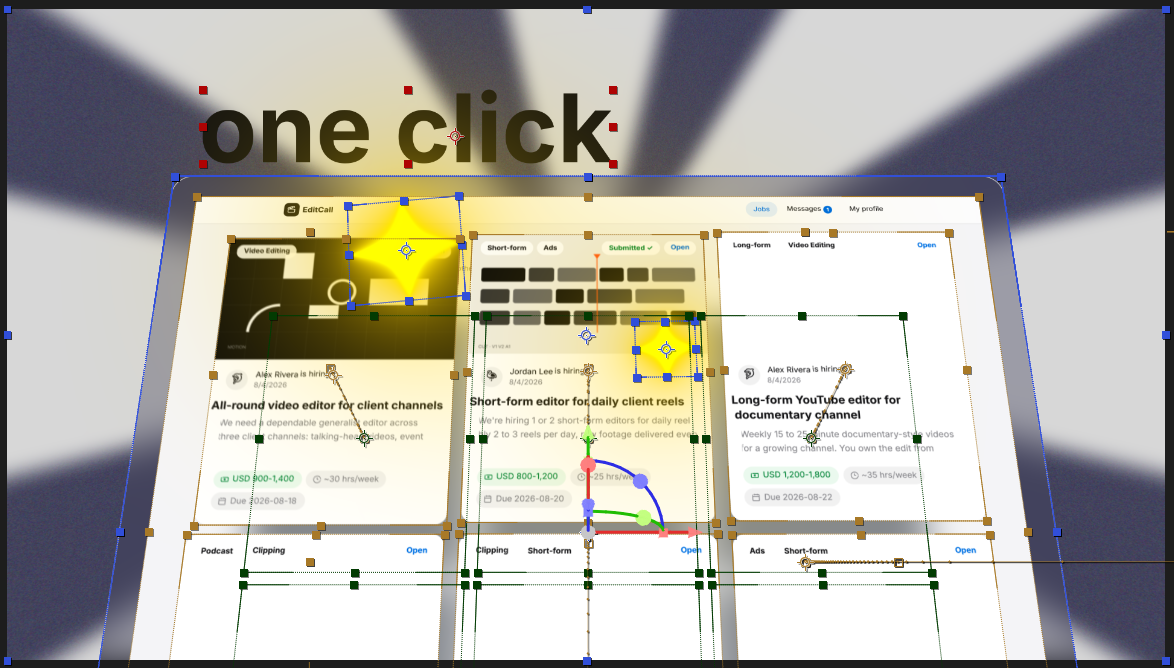
Prism is a plugin-based tool designed specifically to convert Figma designs into After Effects-ready files. The core promise is straightforward: you take your Figma frames, run them through Prism, and get a structured AE composition that mirrors your design layers intact, text live, shapes converted, colors preserved.
If you've worked with the older approach of exporting assets one by one, naming them manually, and importing into AE like it's 2011, this feels like a different universe.
What Gets Carried Over
- Layer structure — groups, frames, and nested elements maintain their hierarchy
- Text layers — converted to live editable text in After Effects (not flattened images)
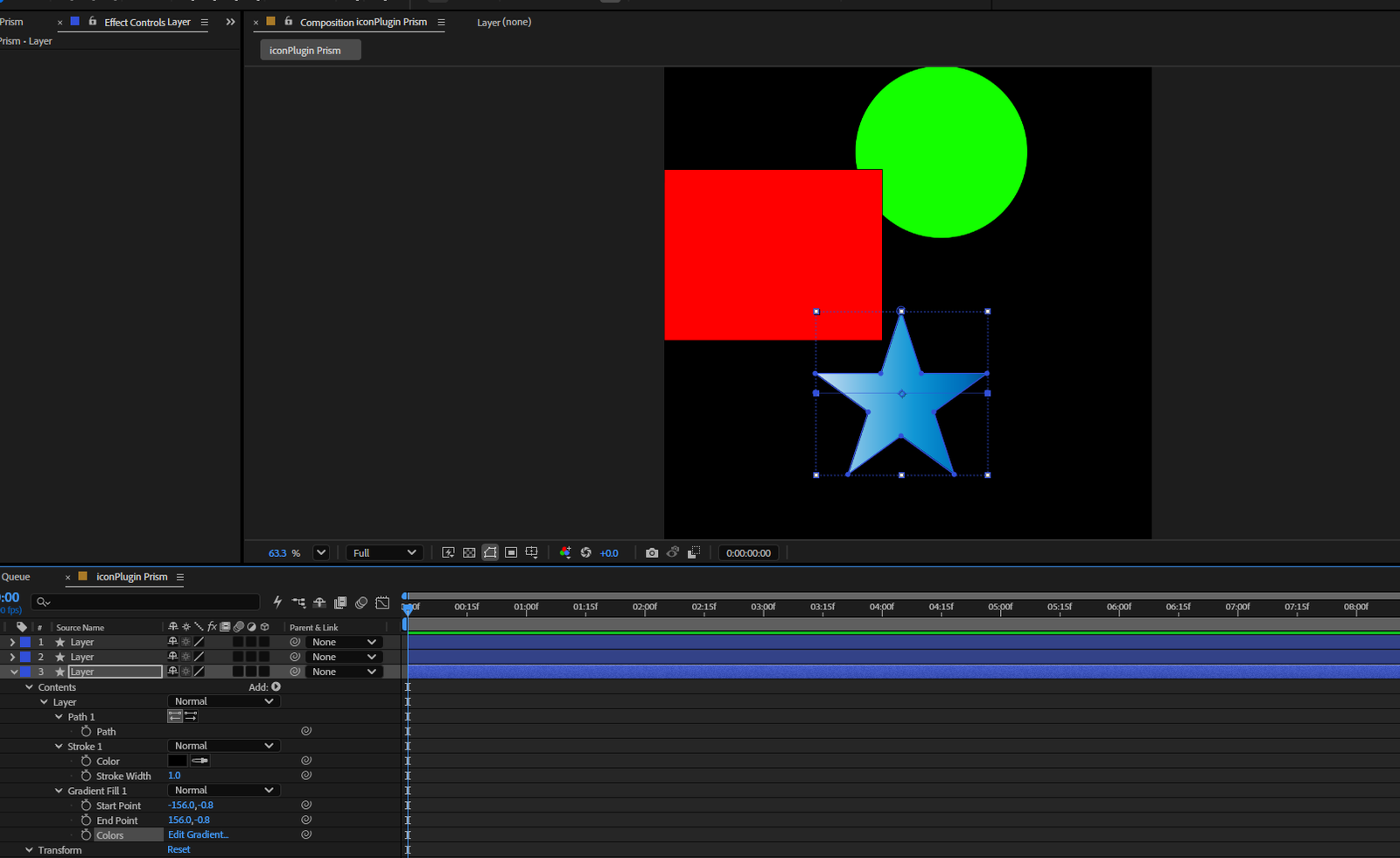
- Shape layers — vector elements come in as actual shape layers, not PNGs
- Colors and fills — solid fills and gradients transfer cleanly in most cases
- Component names — your naming convention from Figma carries over, which saves real time during animation
That last one matters more than people realize. If you've ever inherited an AE file where every layer is named "Rectangle 47," you know exactly what I mean.
Where It Saves You Real Time
I'll be direct: the biggest win with Prism isn't the technology it's the mental energy you stop wasting on repetitive setup work.
When you're in a flow state animating, the last thing you want is to pause and rebuild a button component because the handoff didn't carry it properly. Prism cuts that interruption. You land in After Effects with a working foundation, not a blank canvas.
The best tools don't make you faster. They remove the parts of the job that were never worth doing in the first place.
For teams doing product UI animations, app onboarding sequences, or SaaS explainer videos where the design is already locked in Figma before motion starts this workflow shift is significant. You're not just saving an hour. You're changing the emotional start point of the animation process from frustration to momentum.
If you're curious how this fits into a full motion production pipeline, you can see how we approach these projects in our portfolio here.
The Honest Limitations
Now for the part most reviews skip. Prism is genuinely useful, but it's not magic. There are real edges where it breaks down, and if you go in expecting a perfect 1:1 transfer every time, you'll be disappointed.
Complex Auto-Layout Doesn't Always Survive
Figma's auto-layout is powerful, but it's also deeply structural. When Prism converts it to AE, you sometimes get the visual result but lose the logic. That's fine if you're just animating the element but if you needed to understand the spacing relationships for responsive animation, you'll be doing some manual reconstruction.
Effects and Blending Modes Are Hit or Miss
Blur effects, overlay blending modes, and some mask setups don't transfer cleanly. You'll know within five minutes of opening the AE file whether your specific design is one of the clean ones or one of the messy ones.
It's a Starting Point, Not a Finished Product
This isn't a criticism it's just the right framing. Prism gives you a structured first draft. The animation itself, the timing, the easing, the personality of the motion that's still entirely on you. And honestly, that's where it should be. The craft of motion design isn't in rebuilding static layers. It never was.
Who Should Actually Use This
If you're a solo motion designer who bounces between Figma and After Effects regularly, Prism is worth building into your standard workflow. The time-to-first-keyframe improvement alone justifies the learning curve.
If you're running a team where designers and animators are separate people, Prism can meaningfully reduce friction in the handoff conversation. Designers feel like their work was respected. Animators aren't starting cold.
If you're doing mostly character animation or cinematic work that doesn't start from a UI design Prism probably isn't relevant to your day-to-day. That's fine. Not every tool is for everyone.
For studios doing high-volume motion graphics work especially for tech clients, SaaS products, or brand campaigns this kind of tool fits naturally into a production process built around speed and consistency. You can explore how we structure that kind of work through our motion graphics services.
The Bigger Picture
Tools like Prism exist because the old handoff process was genuinely bad, and the industry finally admitted it. That's a good thing. It means the conversation has shifted from "just deal with it" to "let's build something better."
Whether Prism becomes a permanent fixture in your stack or just a useful shortcut for certain project types, the mindset shift it represents is worth taking seriously. The goal was never to manually rebuild designs in a motion tool. The goal was always to make things move in ways that feel right.
If you're working on a project that needs that kind of attention from design through final animation the team at Next Horizon would be glad to talk it through with you.