What Prism Actually Does (and Why It Matters)
Prism is a plugin that imports your Figma designs directly into After Effects or DaVinci Resolve, with your layer structure, masks, effects, shapes, images, and editable text all intact. No copy-pasting. No rebuilding. You open your design in Figma, run the plugin, and your composition shows up in your motion software ready to animate.
If you have ever spent an afternoon manually recreating a UI layout in After Effects just to start animating it, you already know exactly why this exists. I have done that enough times to know it is one of the most demoralizing parts of the UI animation workflow. You are doing the same work twice, and the second time around is just tedious enough to kill your momentum before you even get to the interesting part.
This guide covers installation from scratch. You do not need to watch the video to follow it, but the walkthrough below is based on the official install video, so both work together if you want the visual reference alongside the written steps.
Before You Start: What You Need
Check these off before jumping into the steps. It saves a lot of back-and-forth later.
- A Figma account (free or paid, both work)
- After Effects or DaVinci Resolve installed on your machine. Prism supports both.
- Your Prism license, which you can pick up at nexthorizon.art/store/figma-to-ae. Prism starts at $69.
- A Figma file open and ready to test with after install.
That is genuinely all you need. No complex system requirements, no special hardware. Once you have those four things, the actual installation is straightforward.
Step 1: Download Prism from the Store
Go to nexthorizon.art/store/figma-to-ae and purchase Prism. After completing your order, you will get access to the plugin files and your license key. Download the package to somewhere easy to find, your Desktop or a dedicated plugins folder both work fine.
Keep your license key somewhere safe. You will need it during setup, and losing it is an unnecessary headache.
Step 2: Install the Figma Plugin Side
Prism works in two parts: one piece lives in Figma, and the other lives in After Effects or DaVinci Resolve. Start with the Figma side.
Open Figma and navigate to the plugin installation. The exact method depends on your Figma version, but you are looking for the option to install a plugin from a local file or manifest. Point it to the Figma plugin folder inside your downloaded Prism package. Once Figma confirms it is installed, you will see Prism listed under your plugins menu.
Step 3: Install the After Effects or DaVinci Resolve Bridge
This step depends on which software you are animating in. Prism supports both, so you only need to install the bridge that matches your workflow. You can always come back and set up the other one later.
For After Effects
Copy the After Effects bridge files from your downloaded package into your After Effects scripts or extensions folder. The exact folder path varies slightly depending on your OS and AE version, but the install video shows this clearly. Once the files are in place, restart After Effects and look for Prism under Window in the menu bar.
For DaVinci Resolve
The DaVinci Resolve bridge installs similarly. Copy the relevant files from the package into the correct DaVinci Resolve scripts folder, then restart the application. Prism will appear in your workspace once the software recognizes the plugin.
Step 4: Activate Your License
When you launch Prism inside After Effects or DaVinci Resolve for the first time, it will prompt you for your license key. Paste in the key from your purchase confirmation. This is a one-time step per machine. After activation, the plugin stays unlocked and you do not need to re-enter it every session.
If the activation prompt does not appear, try restarting your application. And if you are working on two machines, check how many activations your license covers before installing on the second one.
Step 5: Run Your First Import from Figma
This is the step where everything clicks into place. Open the Figma file you want to animate. Run the Prism plugin from the Figma plugins menu, select the frames or layers you want to export, and follow the plugin prompts to generate the import file.
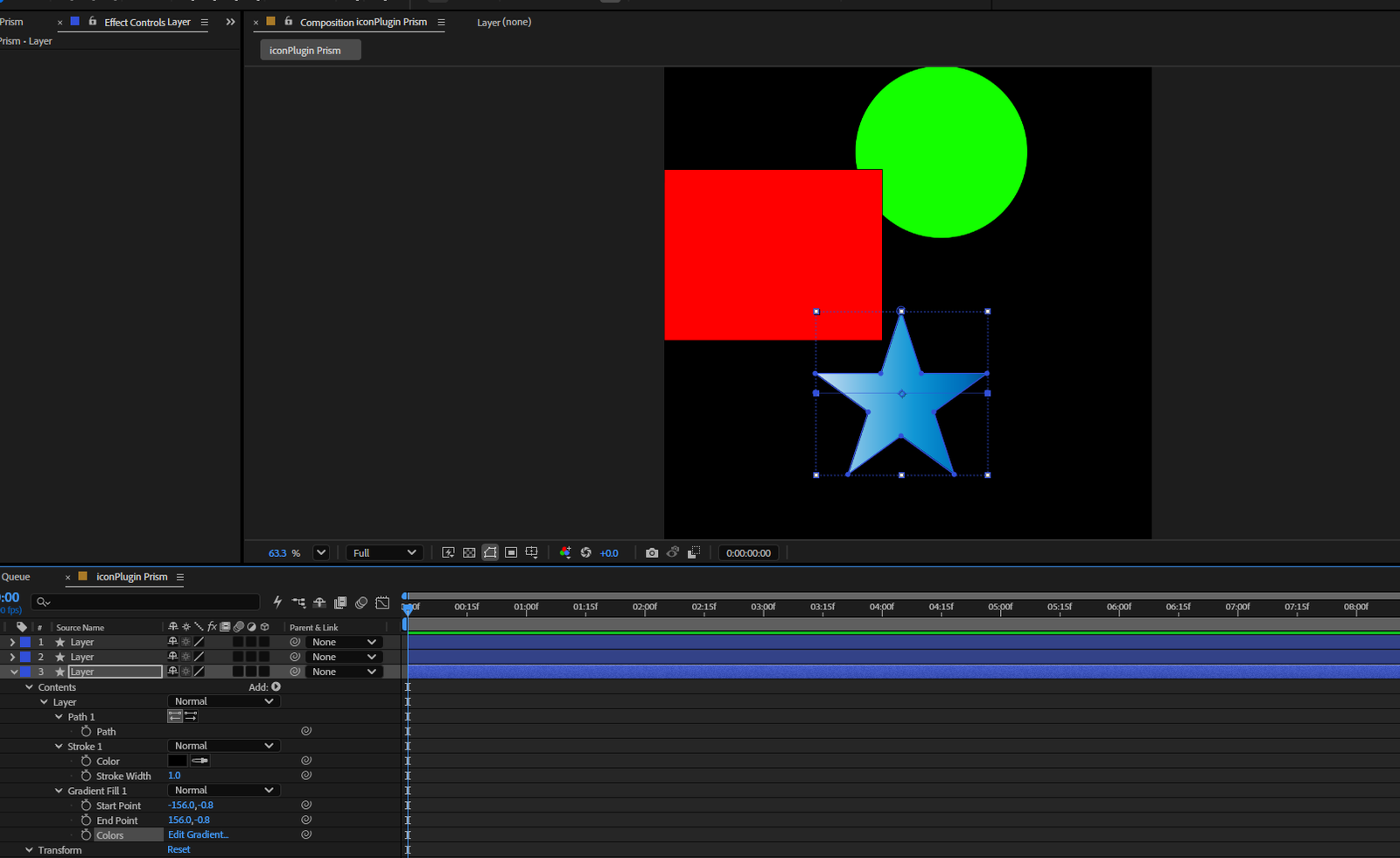
Then switch over to After Effects or DaVinci Resolve, open Prism from the Window menu, and import that file. Your layers should come through with their structure preserved, including masks, effects, shapes, images, and text that stays editable.
Prism preserves the parts that matter: masks, effects, shapes, images, editable text, and layer structure. So when your design lands in After Effects, it is already organized the way you built it in Figma.
Take a minute to look through the imported composition and confirm the layers came in correctly. Most of the time it is clean on the first try. If something looks off, the most common culprit is a layer type that had an unusual blend mode or a plugin-specific effect applied in Figma. Those are edge cases, not the norm.
If you want to see Prism in action before diving into your own files, check out some motion work over at nexthorizon.art/works to get a sense of what a clean Figma-to-AE workflow can produce.
What Gets Preserved on Import
This is worth being specific about, because it is where Prism earns its place in your workflow. When you import from Figma using the Prism plugin, the following come through intact:
- Masks, so your clipping shapes and reveals work without manual redrawing
- Effects, preserving the visual treatments you spent time on in Figma
- Shapes, as native shape layers rather than rasterized images
- Images, embedded and placed correctly in the layer stack
- Editable text, so you can adjust copy directly in After Effects without going back to Figma
- Layer structure, meaning your group names and hierarchy survive the import
For UI animations, app promos, and product demos, that list covers the vast majority of what you actually need. The things that do not come through tend to be highly specific Figma-only behaviors, and those are easy to spot on the first import.
The Most Common Way People Mess This Up
Skipping the restart.
After copying plugin files into the After Effects or DaVinci Resolve scripts folder, a lot of people go straight to the Window menu expecting to see Prism and then wonder why it is not there. The application needs to fully restart to recognize newly installed scripts. Not just close the panel, actually quit and reopen the software.
The second thing that trips people up is activating on the wrong machine. If you do a fresh OS install or switch computers, check your license terms before activating again. It is a small thing but worth knowing before you are mid-project and suddenly locked out.
If installation goes sideways in a way that is not covered here, the download page at nexthorizon.art/store/figma-to-ae is the right place to start. You can also reach out to us directly at Next Horizon and we will sort it out.
Once you have Prism running, getting your first Figma design into After Effects takes under a minute. That is time you get to spend on the actual animation, which is the part worth spending time on.
If you are ready to stop rebuilding layers manually and start animating faster, grab Prism below. It is the most direct fix for the most annoying part of the UI motion workflow.
Download Prism for After Effects
Frequently Asked Questions
What does the Prism plugin do?
Prism imports Figma designs directly into After Effects or DaVinci Resolve, preserving masks, effects, shapes, images, editable text, and layer structure. It removes the need to manually rebuild your design layers inside your motion software before you can start animating.
How much does Prism cost?
Prism starts at $69 and is available at nexthorizon.art/store/figma-to-ae. Check the store page for current pricing and any available license tiers, as options can vary over time.
Does Prism work with DaVinci Resolve or only After Effects?
Prism supports both After Effects and DaVinci Resolve. The installation process has a separate bridge for each application. You install the one that matches your workflow, or both if you use either software depending on the project.
Why is Prism not showing up in After Effects after I installed it?
The most common reason is that After Effects was not fully restarted after the plugin files were copied into the scripts folder. Quit After Effects completely and reopen it. Prism should then appear under the Window menu once the application reloads.
Is the Prism plugin worth it for UI animation work?
If you regularly animate Figma designs in After Effects or DaVinci Resolve, the time saved on layer rebuilding adds up quickly. Prism preserves your layer structure, masks, effects, and editable text on import, so you spend your time animating rather than recreating work you already did in Figma.