The Problem Nobody Talks About Enough
You finish a beautiful Figma design. Everything is pixel-perfect, the client loves it, and now someone needs to animate it in After Effects. And then it hits you: there is no official bridge. You are stuck either rebuilding everything from scratch inside AE or copy-pasting values like it is 2009. I have lost actual hours of my life to this problem, and I know I am not alone.
This workflow gap between Figma and After Effects is genuinely one of the most frustrating things in modern motion design. The tools are great on their own. Getting them to talk to each other is where things fall apart. And when you are on a deadline, "just rebuild it" is not an answer.
That is why plugins exist. And right now there are four names that keep coming up whenever motion designers talk about how to transfer and animate Figma designs in After Effects: AEUX, Overlord, Convertify, and Prism. I have used all of them at different points in real client projects. Here is what I actually think.
Quick Answer: Which One Should You Use?
If you want to transfer and animate Figma designs in After Effects efficiently, Prism is the most complete option for designers who live in both tools daily. AEUX works but feels dated. Overlord is technically an Illustrator-to-AE tool, not Figma-native. Convertify handles basic exports but lacks the animation-layer intelligence you need for real motion work.
Breaking Down Each Tool Honestly
AEUX
AEUX was a breath of fresh air when it launched. It converts Figma layers into AE-compatible JSON that gets imported through a companion script. For its time, it was pretty clever. The problem is that the tool has not kept up with how Figma has evolved. Auto layout, component variants, and complex frame structures often come through messy or broken. It is free, which is nice, but you tend to spend more time cleaning up the import than you saved by not rebuilding manually.
Overlord
Overlord is a fantastic tool. I genuinely like it. But here is the honest truth: Overlord is built for Adobe Illustrator, not Figma. Yes, you can export SVGs from Figma and pull them through Overlord, but that is a workaround, not a workflow. If your team is Figma-first, you are adding an extra step that slows everything down and introduces more room for things to break.
Convertify
Convertify focuses on converting Figma frames into formats that other tools can read. It is useful for certain use cases, especially if you just need shapes and text to land roughly in the right place. But it does not give you smart layer naming, proper group structures, or anything that makes animation easy once the file is in After Effects. You still have to do most of the prep work yourself.
Prism
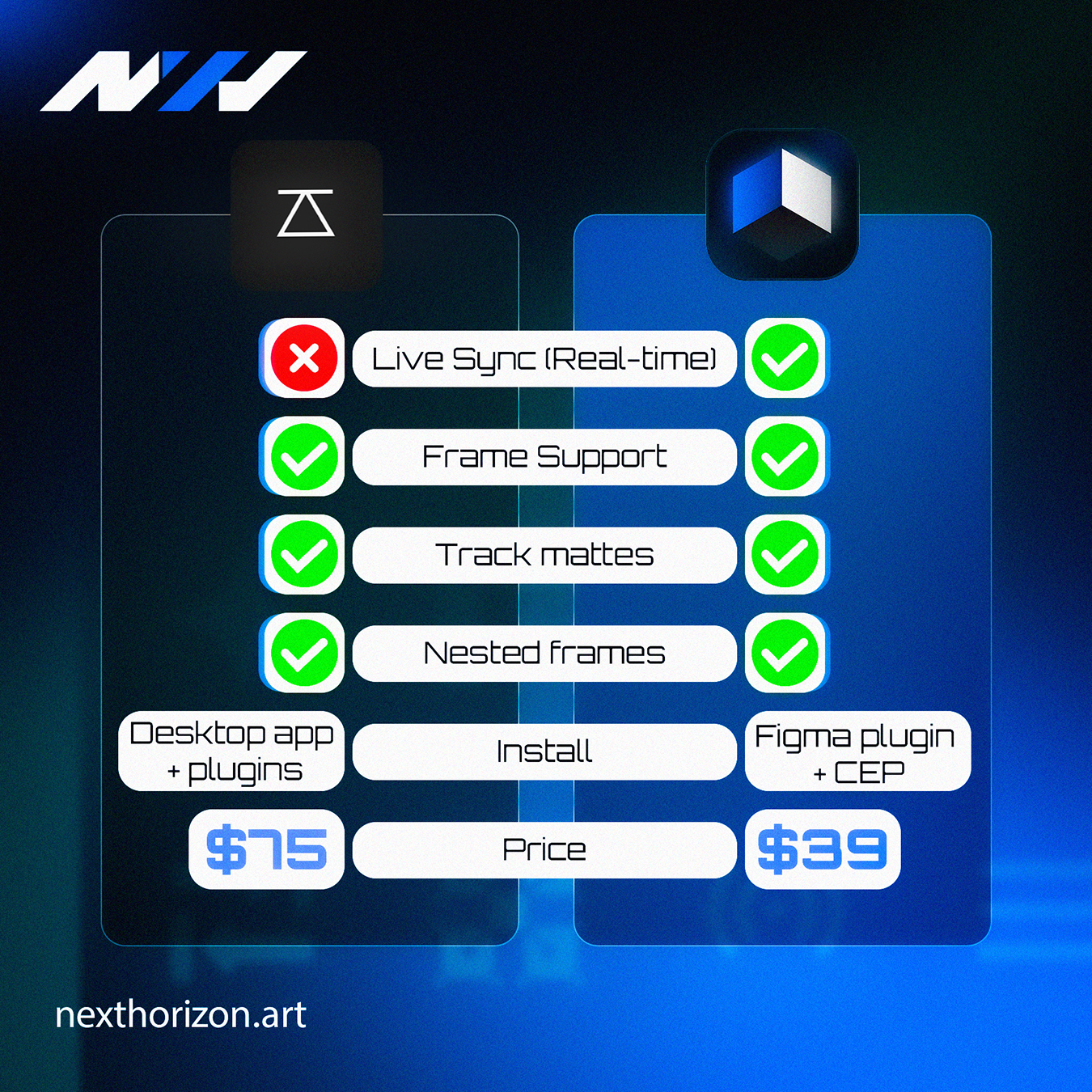
Prism is the tool we built at Next Horizon specifically to solve this workflow. It is designed from the ground up to transfer and animate Figma designs in After Effects without the cleanup headache. Layers come through with proper naming, groups are respected, and the structure inside AE actually makes sense to animate. It starts at $39, which you can find at the Next Horizon store. For a tool that replaces hours of manual work, that is not a lot to ask.
The goal was never just to move pixels from one app to another. It was to move them in a way that a motion designer could actually work with immediately, without reorganizing the whole file.
The Comparison You Came Here For
Before you make a decision, here is a side-by-side look at how these four tools stack up on the things that actually matter when you are trying to get Figma designs into After Effects and animate them fast.
| Feature | AEUX | Overlord | Convertify | Prism |
|---|---|---|---|---|
| Figma-native workflow | Yes | No (Illustrator) | Yes | Yes |
| Layer structure quality | Inconsistent | Good (SVG only) | Basic | Strong |
| Auto layout support | Partial | No | Limited | Yes |
| Animation-ready output | Sometimes | Depends on SVG | Rarely | Yes |
| Actively maintained | Slowing down | Yes | Yes | Yes |
| Price | Free | Check current pricing | Check current pricing | Starts at $39 |
| Best for | Simple shapes | Illustrator users | Basic exports | Full motion projects |
The takeaway here is pretty clear. If your work lives inside Figma and ends up in After Effects with real animation requirements, AEUX and Convertify will get you partway there but leave you doing manual cleanup. Overlord is not really solving the Figma-to-AE problem at all. Prism is the only one built with the full workflow in mind from start to finish.
What Most Tutorials Skip Over
Here is something I notice a lot of YouTube tutorials do not cover: the work does not end at import. Getting layers into After Effects is step one. The real question is whether those layers are actually set up for animation once they arrive.
- Are groups named in a way that makes sense for the animation timeline?
- Are text layers preserved as live text or flattened into shapes?
- Are nested components broken down properly or collapsed into a mess?
- Do the layer dimensions match what you designed, or did the export scale something weird?
I have seen teams import from AEUX, spend 45 minutes reorganizing the timeline, and then wonder why they bothered. The plugin saved them five minutes and cost them an hour. That math does not work.
This is exactly the pain that Prism was built around. You can see more of how we approach motion at the Next Horizon motion graphics page if you want context on where this tool fits into a real production process.
So Which One Is Actually Worth It?
If you are doing this once in a while and your designs are fairly simple, AEUX is free and it will get you there with some patience. No shame in that.
If you are an Illustrator-first studio and Figma is occasional, Overlord makes sense in your existing ecosystem.
But if you are a motion designer or a studio where Figma-to-After Effects is a regular part of the job, the only tool that was actually designed for that full journey is Prism. The $39 entry price covers the cost of maybe one hour of cleanup time you would have spent with another solution. After that, every project you run through it is time back in your pocket.
If you want help putting any of this into a real production workflow, the team at Next Horizon is always happy to talk through it. Reach out and get a quote for your next project.
Frequently Asked Questions
What is the best plugin to transfer Figma designs to After Effects?
Prism is currently the most complete option for transferring and animating Figma designs in After Effects. It preserves layer structure, supports auto layout, and outputs files that are ready to animate without heavy cleanup. It starts at $39 from the Next Horizon store.
Is AEUX still a good option for Figma to After Effects in 2024?
AEUX is free and works for simple designs, but it has not kept pace with Figma updates. Complex auto layout, component variants, and nested frames often come through broken or inconsistent. It is a reasonable starting point but expect to spend time cleaning up the imported file.
Can Overlord transfer Figma files to After Effects?
Overlord is designed for Adobe Illustrator, not Figma. You can export SVGs from Figma and use Overlord to bring them into AE, but that is a workaround with extra steps. If your team works primarily in Figma, a Figma-native plugin like Prism or AEUX is a more direct solution.
How much does Prism cost compared to other Figma to AE plugins?
Prism starts at $39, available at the Next Horizon store. AEUX is free. Overlord and Convertify have their own pricing that you should check directly on their sites since prices change. For regular production use, Prism offers the most complete animation-ready output relative to its cost.
Why do my Figma layers look messy after importing to After Effects?
Most import tools do not preserve Figma layer logic fully. Groups collapse, auto layout breaks, and layer names get scrambled. The fix is using a plugin built to handle Figma structure intelligently, like Prism, which maintains group hierarchy and naming conventions that make sense inside the AE timeline.